How to Add a New Product to WooCommerce (Step-by-Step)
A comprehensive, illustrated guide to listing your products correctly, attracting customers, and ranking high on Google.
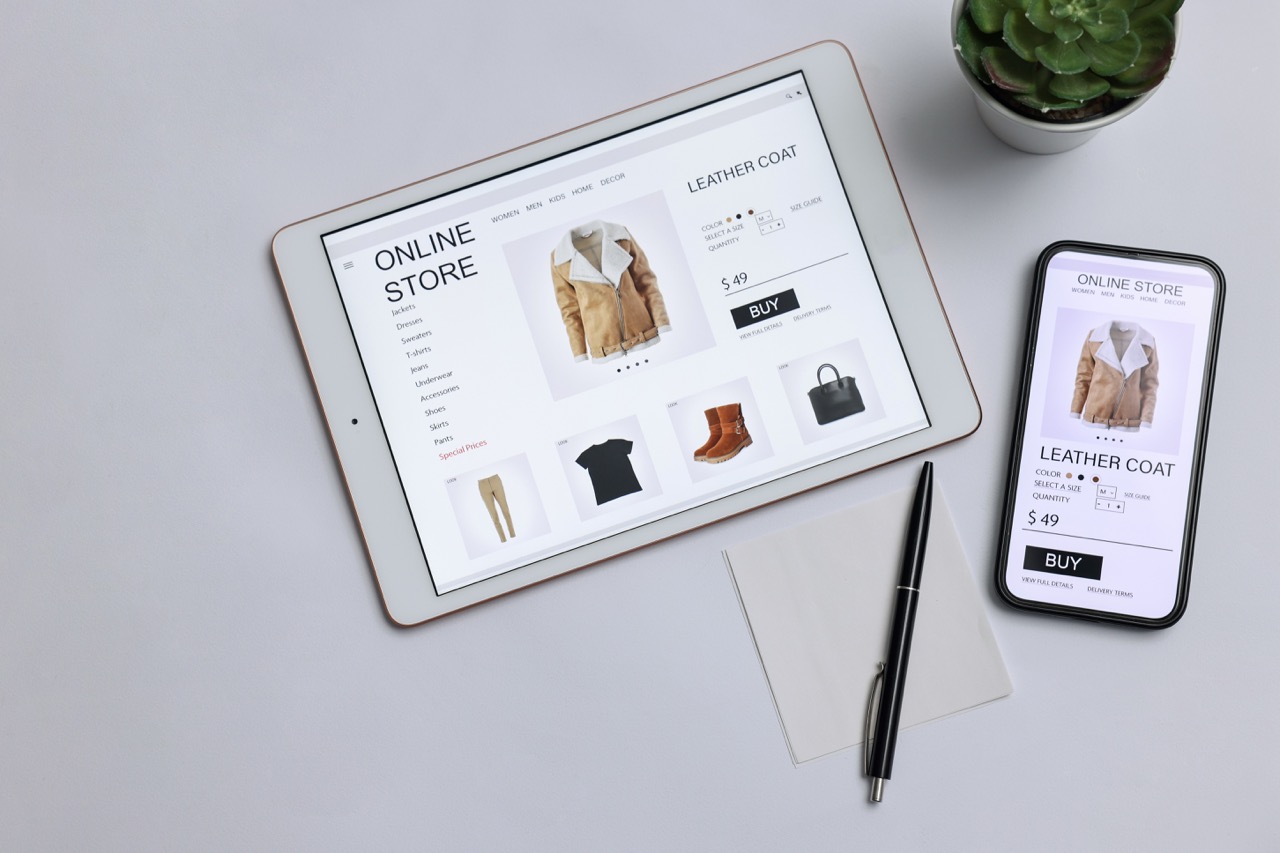
Adding products is the heart of your online store. Although the process seems simple, there are certain key points that, if you pay attention to them, will turn your product into a “sales machine” and help you avoid mistakes that cost you in terms of speed and SEO.
Login to the Management Environment
Log in to your WordPress site by adding the /wp-admin at the end of your domain. From the left-hand menu, hover your mouse over the Products and click on Add New.
[ Screenshot: The WordPress left-hand menu and the "Add New" option ]
Title and Long Description
On the page that opens, you will enter your product's details:
- Product Name: Write a clear title. Instead of simply “T-shirt,” use “Men’s Black Cotton T-shirt.”.
- Long Description: In the main section, describe the features (materials, advantages, style).
In the long description, try to include keywords that a customer might search for on Google (e.g., “durable fabric,” “ideal for everyday use”). This will help the product rank higher in search results.
[ Screenshot: The Title field and the Long Description text editor ]
Product Information (Price & Inventory)
Scroll down to the box Product Data. This is the most important technical part:
[ Screenshot: The “Product Data” panel, with the focus on the price and SKU fields ]
Categories and Images (Right Column)
Now look at the **right-hand column** of your screen. That's where the information the customer will see first is located:
- Product Categories: Select the product category (e.g., Clothing > Men's).
- Product Image: This is the main photo. It must be clear and have a white or neutral background.
Do not upload photos directly from your cell phone or camera if they are larger than 500KB. Uncompressed, “heavy” images will slow down your e-shop, causing you to lose customers due to slow loading times.
[ Screenshot: The right-hand sidebar with the “Categories” and “Product Image” blocks ]
Brief Description & Publication
At the bottom of the page, you'll find the Brief Description. This text appears at the top, right next to the price and the "Buy" button. List 2–3 key benefits in bullet points.
When you're done, scroll all the way to the top right and click the big blue button Publish.
[ Screenshot: The "Short Description" field and the "Publish" button ]
Are you tired of struggling with the technical aspects of your online store?;
At Skynetix, we handle all technical maintenance, security, daily backups, and speed optimization for your WordPress e-shop, so you can focus exclusively on growing your business.